Laptop, AirPlay, Chromecast or TV browser
Put the party on the TV
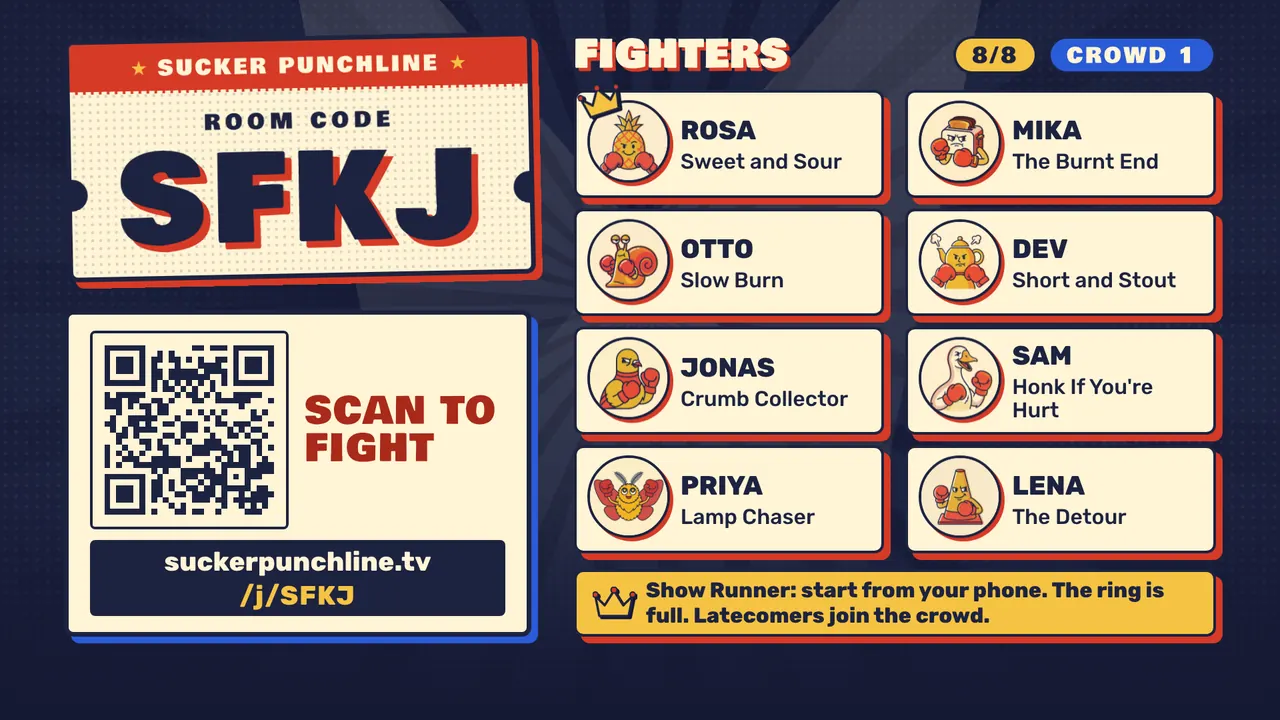
Sucker Punchline is a free party game: the TV shows the prompts and answers, everyone writes and votes on their own phone. It runs in a web browser, so anything that can put a web page on your TV can host it: a laptop on HDMI, AirPlay from a Mac, iPhone or iPad, a Chrome tab cast to a Chromecast, or the TV's own browser. Here is how to set up each one, with sound.
- Laptop, AirPlay, Chromecast or TV browser
- Phones are the controllers
- Free
Updated
Start on this screen
On a phone, START makes this phone the game screen: it shows the game and does not play.
START A GAMEThis screen shows the game: put it on the TV or share it on a call. Everyone plays on their own phone. Free, no accounts.
To play too, open
suckerpunchline.tv
on a laptop, TV or tablet and press START there.
No TV or laptop? Start here, then mirror this phone to a TV (AirPlay or Chromecast) or stand it up where everyone can see it.
3 to 8 players plus a crowd of up to 200. Alone or with one friend? AI fighters fill the ring.
What you need
- One screen everyone can see, showing a web page: the TV through one of the setups below, or just a laptop or iPad on the table.
- A phone (or tablet) per player with a web browser. No app, no account.
- Internet on every device. Phones talk to the game over the internet, so they do not need to be on the TV's Wi-Fi; mobile data works. Mirroring (AirPlay, Chromecast) does need the hosting device and the TV on the same Wi-Fi [1] [7].
Pick your setup
| Setup | You need | Sound on the TV | Good to know |
|---|---|---|---|
| Laptop on HDMI | A laptop and an HDMI cable | Yes, once the TV is chosen as the sound output [4] [5] | Fewest moving parts: nothing depends on Wi-Fi between laptop and TV. |
| AirPlay from a Mac | Apple TV or an AirPlay TV on the same Wi-Fi | Yes [3] | Mirror or use the TV as a separate display. |
| AirPlay from an iPhone or iPad | Apple TV or an AirPlay TV on the same Wi-Fi | Yes, with volume up on both [2] | Turn the phone or iPad sideways. The host device stays out of play; players use their own phones. |
| Cast a Chrome tab | Chrome on a computer, a Chromecast or Google TV | Yes, sound plays on the TV [6] | Keep the laptop awake and the tab open. |
| Cast an Android screen | Google Home app, Android 8.0 or later, same Wi-Fi | Not stated by Google; check on your TV | Cast my screen [7] |
| Mirror to a Roku | An Android 10+ phone or a Windows 10 or 11 laptop [9] | Not stated by Roku; check on your TV | Roku has no web browser of its own [11] |
| The TV's own browser | A Samsung, LG or similar smart TV | Yes, the TV plays it | Speed depends on the TV and the network [12] |
Step by step
Laptop on HDMI (fewest moving parts)
- Plug the laptop into the TV with an HDMI cable and switch the TV to that input.
- Send the sound to the TV. On a Mac: Apple menu, System Settings, Sound, Output, then pick the TV [4]. On Windows: Settings, System, Sound, Output [5].
- Open suckerpunchline.tv in Chrome, Edge, Safari or Firefox and press START. The lobby and QR code appear on the TV.
AirPlay from a Mac
- Connect the Mac and the Apple TV or AirPlay TV to the same Wi-Fi.
- Click Screen Mirroring in the menu bar or Control Center and choose the TV [3].
- Open suckerpunchline.tv on the mirrored screen and press START.
AirPlay from an iPhone or iPad
- Connect the phone or iPad and the TV to the same Wi-Fi.
- Open Control Center, tap Screen Mirroring and pick the TV [1].
- Open suckerpunchline.tv in Safari or Chrome and press START. Turn the device sideways: the game is widescreen, and held upright it fills only a strip of the TV.
- Keep the volume up on both the device and the TV [2]. Tap the screen once if the sound does not start.
The device that hosts is the game screen, so it does not play. Everyone joins on their own phone, including you if you want a seat. The game asks the host device to stay awake while a room is open; if it still dims, set Auto-Lock to a longer time in the device's settings.
Chromecast or Google TV (cast a tab)
- On a computer, open suckerpunchline.tv in Chrome and press START.
- Open Chrome's menu, choose Cast, and pick your Chromecast or Google TV [6].
- Keep the tab open and the computer awake for the whole game.
Roku
Roku TVs and players have no web browser [11], so mirror a device that is running the game:
- Open suckerpunchline.tv on an Android phone (Android 10 or later) or a Windows 10 or 11 laptop and press START.
- Android: pull down the status bar and tap Smart View (or your phone's screen-cast option), then pick the Roku. Windows 11: press Windows+K and pick the Roku. Allow it on the TV [9].
- Apple devices: many Roku models support AirPlay [10], but Roku's page only describes AirPlay from video apps, so we have not confirmed mirroring a browser this way.
Smart TV browser (Samsung, LG and others)
- Open the TV's web browser: on Samsung from the Smart Hub [8], on LG from the Home button [12].
- Type suckerpunchline.tv with the remote, then move to START A GAME and press OK.
- If animations stutter or the TV browser is slow, switch to a laptop on HDMI or a cast tab.
Not covered here yet: Amazon Fire TV and its Silk browser. We could not load Amazon's current instructions, so we do not give steps. If your TV can open a website or show a mirrored laptop, phone or tablet, it can host the game.
How we tested this
The host screen was tested at phone and iPad sizes, upright and sideways, in the engines behind Chrome and Safari, with a player joining from a phone (automated tests, September 28, 2026). We have not yet recorded it on each kind of TV, so the TV steps above follow the makers' own instructions, linked in the sources.
Not in the same room?
Share the game screen on a video call instead of a TV, and everyone plays on their phone from wherever they are. How to play over Zoom, Discord, Meet or Teams.
Questions
Do I need a console or a game app on the TV?
No. Any screen that can show a web page works. There is nothing to install on the TV or the phones.
Can a phone be the host?
Yes. Open the site on the phone and press START, then mirror it to the TV with AirPlay or Chromecast, turned sideways. The hosting phone shows the game; the players use their own phones.
The sound plays on the laptop, not the TV. What now?
The TV page reloaded mid-game. Did we lose everything?
No. The show pauses for everyone and picks up where it was when the page comes back.
Sources
- Apple Support, Use AirPlay to stream video or mirror the screen of your iPhone or iPad: support.apple.com/en-us/102661 (checked September 28, 2026)
- Apple Support, If screen mirroring or streaming isn't working on your AirPlay-compatible device: support.apple.com/en-us/102587 (checked September 28, 2026)
- Apple Support, Stream video and audio with AirPlay (Mac): support.apple.com/guide/mac-help/stream-video-and-audio-with-airplay-mchld7e543a0/mac (checked September 28, 2026)
- Apple Support, Connect to HDMI from your Mac: support.apple.com/en-us/108928 (checked September 28, 2026)
- Microsoft Support, Fix sound or audio problems in Windows: support.microsoft.com/en-us/windows/fix-sound-or-audio-problems-in-windows-73025246-b61c-40fb-671a-2535c7cd56c8 (checked September 28, 2026)
- Google Chromecast Help, Cast from Chrome to your TV: support.google.com/chromecast/answer/3228332 (checked September 28, 2026)
- Google Cast Help, Cast your Android screen from the Google Home app: support.google.com/chromecastbuiltin/answer/6059461 (checked September 28, 2026)
- Samsung Support, How to open website in Smart TV?: www.samsung.com/hk_en/support/tv-audio-video/how-to-open-website-in-smart-tv/ (checked September 28, 2026)
- Roku Support, Screen mirror your phone, tablet or computer: support.roku.com/article/screen-mirror-your-phone-tablet-or-computer (checked September 28, 2026)
- Roku Support, Screen mirror your Apple device with AirPlay: support.roku.com/article/screen-mirror-your-apple-device-with-airplay (checked September 28, 2026)
- Roku Support, Can I browse the internet?: support.roku.com/article/can-i-browse-the-internet (checked September 28, 2026)
- LG Support, LG TV: How to Use the Web Browser: www.lg.com/us/support/help-library/lg-tv-how-to-use-the-web-browser--20153257222107 (checked September 28, 2026)